Technical SEO
Why Is My Website Not Showing on Google? 12 Common Reasons and Fixes

You have created a website, published your content, and made everything live. But when you search for your website on Google, nothing appears.
This can be frustrating, especially when your business depends on online visibility and organic traffic.
The good news is that many website indexing and visibility problems can be diagnosed and fixed.
Your website might be blocked from crawling, contain incorrect SEO settings, have technical errors, or simply not have been discovered by Google yet.
In this guide, we explain why your website is not showing on Google, how to identify the problem using Google Search Console, and 12 practical ways to fix it.
Why Is My Website Not Showing on Google Search?
If your website is not appearing in Google Search, there are two main possibilities:
1. Your website is not indexed by Google.
Google has not added the page to its search index, or it has selected another URL instead.
2. Your website is indexed but not ranking visibly for your target keywords.
Google knows about your webpage, but it may not consider the page sufficiently relevant or competitive for the search query.
These are different problems and require different solutions.
For example, if your homepage is indexed but does not appear when someone searches "digital marketing agency in Delhi," this does not necessarily mean your website has an indexing problem.
It may be a search relevance or ranking issue.
Before making any changes, identify which situation applies to your website.
How to Check If Your Website Is Indexed by Google
The easiest initial check is a Google search using the site: operator.
For example:
site:yourwebsite.com
Replace yourwebsite.com with your actual domain.
If Google displays pages from your website, at least some of its content is appearing in Google's search index.
However, this operator is not a complete or reliable indexing audit.
If no results appear, don't immediately assume your entire website is blocked.
For more accurate information, use Google Search Console.
Check Your Website in Google Search Console
Follow these steps:
- Open Google Search Console.
- Select your verified website property.
- Enter the complete webpage URL in the top URL Inspection field.
- Review the Page indexing status.
- Check the reported indexing reason, crawl information, and canonical URL.
- Select Test Live URL when you need to inspect the current page.
- Correct any confirmed problems before requesting indexing.
This process helps identify whether Google can access your page and why it may not be indexed.
12 Reasons Your Website Is Not Showing on Google and How to Fix Them
Let's explore the most common website indexing problems and their solutions.
1. Your Website Is New and Google Has Not Discovered It Yet
A common reason a new website is not appearing on Google is that Google has not discovered or crawled its pages.
Publishing a website does not mean Google will immediately add it to search results.
Google discovers pages through links, sitemaps, and other mechanisms.
How to Fix It
Start by setting up Google Search Console.
Verify your website ownership and submit your XML sitemap.
For example:
(https://brainadz.marketing/sitemap.xml)
Then inspect your homepage and important service pages.
If eligible, use the Request Indexing option.
Make sure important pages are connected through internal links.
Important: Indexing requests do not guarantee inclusion, and newly published pages can take time to appear.
2. Your Website Is Blocking Googlebot Through Robots.txt
The robots.txt file tells compatible web crawlers which areas of a website they may access.
Incorrect robots.txt rules can prevent Googlebot from crawling important pages.
For example, the following configuration blocks Googlebot from crawling the entire website:
User-agent: Googlebot
Disallow: /
This is a serious problem if you want your public website to appear in Google Search.
How to Fix It
Open:
(https://yourwebsite.com/robots.txt)
Review the rules that apply to Googlebot.
For a website that intends to allow crawling of its public pages, a simple configuration might be:
User-agent: *
Allow: /
Sitemap: (https://yourwebsite.com/sitemap.xml)
This is only an example. Real websites may need to restrict private or unimportant paths.
Remove unintended blocks and test the affected URLs in Google Search Console.
Also remember that robots.txt is not a secure method for protecting confidential information or reliably removing known URLs from search results.
3. Your Website Has a Noindex Tag
The noindex directive tells supporting search engines not to include a webpage in their search index.
It is sometimes added during development or staging to prevent unfinished pages from appearing in search results.
If the directive remains after launch, important pages may be excluded from Google.
How to Fix It
Check your page's HTML for a robots meta tag such as:
<meta name="robots" content="noindex">
If the page is intended to be indexed, remove the unintended noindex directive.
Also check for an X-Robots-Tag response header containing noindex.
After making changes, confirm the directive is no longer present and use Search Console to request a recrawl.
For Google to discover the removal, it must be able to crawl the affected page.
4. Your XML Sitemap Is Missing or Incorrect
An XML sitemap helps search engines discover important URLs.
It is especially useful for new websites, large websites, and websites with frequently updated content.
However, an incorrect sitemap can contain broken, redirected, non-canonical, or excluded URLs.
How to Fix It
Check whether your sitemap is accessible.
Common sitemap paths include:
(https://yourwebsite.com/sitemap.xml)
(https://yourwebsite.com/sitemap_index.xml)
Use the actual path generated by your website or SEO platform.
Your sitemap should primarily contain canonical URLs that you want search engines to index.
Then:
- Open Google Search Console.
- Select your website.
- Navigate to Sitemaps.
- Enter your sitemap URL.
- Submit it.
- Review any processing errors.
A sitemap improves URL discovery but does not force Google to index every listed page.
5. Your Website Has Server Errors or Hosting Problems
Googlebot needs to access your webpage successfully.
If your hosting server frequently returns errors, crawling and indexing may be affected.
Examples include:
- 500 Internal Server Error
- 502 Bad Gateway
- 503 Service Unavailable
- Connection timeouts
- Repeated hosting outages
An important public page should normally return an HTTP 200 OK response.
How to Fix It
Check your website's HTTP response status.
Use your browser's developer tools, hosting logs, or an HTTP status checker.
Investigate recurring server errors and ensure your hosting environment responds reliably.
If your website runs on Next.js, WordPress, or another content management platform, also check application logs and database connectivity.
Resolve underlying errors before requesting indexing again.
A webpage that occasionally loads in your browser may still have intermittent failures when Googlebot visits it.
6. Your Page Has Duplicate Content or Incorrect Canonical Tags
Google sometimes discovers multiple URLs containing identical or very similar content.
For example:
(https://yourwebsite.com/services)
(https://yourwebsite.com/services?source=homepage)
Search engines generally try to identify a representative canonical version.
If your canonical signals are incorrect, Google may select a different URL from the one you want indexed.
How to Fix It
Use Google Search Console's URL Inspection tool to compare:
- User-declared canonical
- Google-selected canonical
For a page intended to be its own canonical, an appropriate HTML tag may look like:
<link rel="canonical" href="https://yourwebsite.com/services">
Review internal links, sitemap URLs, redirects, and canonical tags for consistency.
Avoid pointing unrelated pages to your homepage.
Also avoid creating separate pages with nearly identical content simply to target minor keyword variations.
Google can select a different canonical even when you specify your preference.
7. Google Has Crawled Your Page but Has Not Indexed It
Google Search Console may show the status:
Crawled – currently not indexed
This means Google has crawled the page but has not included it in its index at the time of reporting.
It does not identify one universal cause.
Possible contributing factors include content duplication, limited usefulness, rendering problems, or Google's indexing decisions.
How to Fix It
Start by reviewing the page itself.
Ask:
- Does it answer a specific search question?
- Is the content original and useful?
- Does another page already cover the same topic?
- Is the main content visible to Google?
- Is the page internally linked?
- Does it have the correct canonical URL?
Improve genuine weaknesses rather than repeatedly requesting indexing.
For example, a short service page containing only generic marketing statements may benefit from detailed service information, real examples, pricing considerations, and useful FAQs.
There is no guaranteed fix that forces Google to index a crawled page.
8. Your Page Is Discovered but Not Yet Crawled
Another Google Search Console status is:
Discovered – currently not indexed
This generally means Google knows about the URL but has not crawled it yet.
The issue may relate to crawl scheduling, server capacity, or the perceived importance of the URL.
It does not necessarily mean something is broken.
How to Fix It
Check that the URL is accessible and included in your site structure.
Improve internal linking from relevant indexed pages.
Ensure the server performs reliably and does not return frequent errors.
Review your sitemap and avoid creating large numbers of unnecessary URL variations.
For a small new website, focus on publishing valuable pages rather than generating hundreds of low-value URLs.
Give Google time to discover and process changes.
9. Your Website Has Weak or Insufficiently Helpful Content
A webpage may be technically accessible yet still struggle to appear in Google Search.
Google aims to present information that is relevant and useful to searchers.
Thin, repetitive, misleading, or unhelpful content can reduce the value of a page.
How to Fix It
Improve content based on search intent.
For example, instead of publishing a generic article titled "SEO Tips," create a practical guide such as:
"How to Improve Organic Traffic for a New Business Website"
Include:
- Clear explanations.
- Actionable steps.
- Original examples.
- Accurate information.
- Relevant supporting images.
- Logical headings.
- Useful related resources.
Avoid producing large numbers of pages that repeat the same information.
Your goal should be to publish content worth finding, not simply to increase the website's page count.
10. Your Website Has Poor Internal Linking
Internal links help people navigate your website and help Google discover pages.
If an important page has no relevant links pointing to it, Google may have difficulty discovering it or understanding its relationship with the rest of your website.
These pages are sometimes called orphan pages.
How to Fix It
Create a logical website structure.
For example:
Homepage → SEO Services → Technical SEO Guide → Google Indexing Troubleshooting
Link related articles together using descriptive anchor text.
A technical SEO article might naturally link to another guide about Google Search Console or indexing problems.
Make sure important links are implemented as crawlable HTML links.
Avoid hiding essential navigation behind interactions that crawlers cannot easily access.
Internal links should serve readers first.
11. JavaScript Rendering Issues Are Hiding Important Content
JavaScript-based websites can experience indexing problems when important content does not render correctly.
Google can execute JavaScript, but rendering introduces additional processing requirements and possible technical limitations.
This is especially important for websites built using React, Next.js, or other JavaScript frameworks.
How to Fix It
Use Google Search Console's URL Inspection tool.
Select Test Live URL and inspect the rendered page information where available.
Check whether Google can access:
- Main headings.
- Page content.
- Internal links.
- Important images.
- Canonical information.
For Next.js websites, consider using server-side rendering or static generation for important public content where appropriate.
Ensure your application returns meaningful HTTP status codes.
For example, a missing blog page should return a genuine 404 response instead of an empty page with a 200 response.
Also ensure JavaScript errors are not preventing Google from accessing essential content.
12. Your Website Is Indexed but Not Ranking for Target Keywords
Sometimes a website is indexed correctly but still does not appear visibly for competitive searches.
This is a ranking and relevance problem rather than an indexing failure.
For example, a new digital marketing agency may find it difficult to rank immediately for a highly competitive keyword like "best SEO company in India."
Many established websites may already provide relevant content for that query.
How to Fix It
Start with realistic keyword research.
Find queries related to your services and audience.
Create content that matches the actual search intent.
Improve:
- Page titles.
- Main headings.
- Service descriptions.
- Content usefulness.
- Internal linking.
- Credibility and original evidence.
- Relevant mentions and backlinks.
- Local business information where applicable.
Use Google Search Console to identify existing queries generating impressions.
Pages already appearing for relevant searches may provide useful opportunities for improvement.
Remember that ranking changes are not guaranteed, even after implementing SEO improvements.
Google Search Console Indexing Errors and Their Solutions
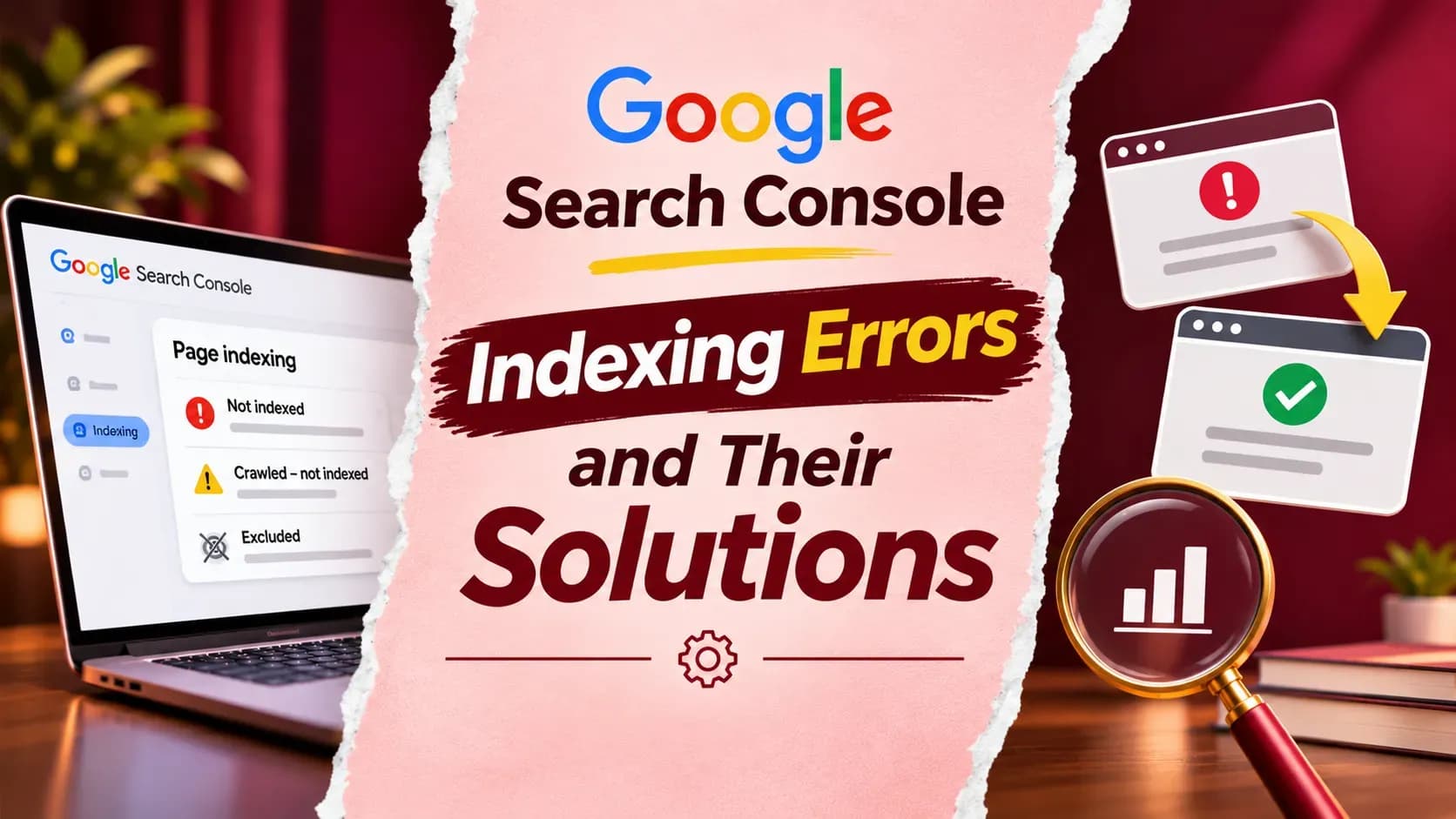
Google Search Console can help identify many types of indexing issues.
Here is a quick troubleshooting reference.
Google Search Console Status | Meaning | Recommended Action |
Crawled – currently not indexed | Google crawled but did not index the page | Review content, duplication, rendering, and canonical signals |
Discovered – currently not indexed | URL is known but not yet crawled | Check discoverability, server reliability, and internal links |
Excluded by noindex | Indexing is prohibited by a directive | Remove unintended noindex |
Blocked by robots.txt | Crawling is restricted | Review and correct relevant robots.txt rules |
Not found (404) | Requested URL does not exist | Fix the URL or redirect if a suitable replacement exists |
Server error (5xx) | Server failed to respond successfully | Investigate hosting and application errors |
Duplicate, Google chose different canonical | Google selected another representative URL | Review canonical and duplicate-content signals |
Alternate page with proper canonical tag | Page points to a canonical alternative | Usually no fix needed if intentional |
Soft 404 | Page appears missing or empty despite a success response | Provide useful content or return the appropriate status |
Not every excluded URL is a problem.
For example, intentional redirects, duplicate URLs, and properly canonicalized alternatives may not need to be indexed.
Prioritize URLs that should genuinely appear in search results.
How to Get Your Website on Google: Step-by-Step Guide
If you're troubleshooting a new website, follow this process.
Step 1: Verify Your Website in Google Search Console
Add your domain property and complete the required ownership verification.
A domain property can consolidate data across supported protocols and subdomains.
Step 2: Check Your Homepage
Inspect your homepage using the URL Inspection tool.
Check whether Google knows the page and whether it is indexed.
If not indexed, review the reported reason.
Step 3: Verify Technical Accessibility
Confirm your important public pages:
- Return HTTP 200.
- Are not blocked from crawling.
- Do not contain unintended noindex directives.
- Have appropriate canonical URLs.
- Contain accessible main content.
Step 4: Submit Your XML Sitemap
Submit your valid XML sitemap in Google Search Console.
Check that important canonical URLs are included.
Step 5: Improve Content and Internal Links
Create useful content for your audience.
Link important pages through navigation, service pages, and relevant articles.
Step 6: Request Indexing for Important URLs
Once technical issues are resolved, inspect the intended canonical URL.
Use Request Indexing when the feature is available.
Avoid submitting the same unchanged URL repeatedly.
Step 7: Monitor Search Performance
Review the Page indexing and Performance reports regularly.
Track which pages are indexed and which relevant queries generate impressions and clicks.
Remember that indexing and ranking are separate processes.
How Long Does It Take for Google to Index a Website?
There is no guaranteed timeframe.
Google may discover and index some pages relatively quickly, while others take longer or are never indexed.
Timing depends on factors such as:
- URL discovery.
- Crawl scheduling.
- Website accessibility.
- Content usefulness.
- Website structure.
- Technical quality.
- Google's indexing decisions.
Google states that requesting indexing does not guarantee inclusion.
Submitting an XML sitemap helps Google discover URLs, but it does not force Google to index them.
Instead of promising instant indexing, focus on addressing the actual problem.
How to Check Whether Google Can Read Your Website Content
Website owners should not rely only on how a page looks in their own browser.
A webpage may appear correct visually while important information is missing from its rendered content.
Google Search Console provides useful diagnostic information.
Inspect the page and review its rendered HTML when available.
Look for the H1 heading, main text, links, and relevant content.
For JavaScript-heavy websites, this check is particularly useful.
If essential content is missing, investigate rendering behavior and server-side HTML generation.
Google's JavaScript SEO documentation recommends testing rendered content rather than assuming it is accessible.
How to Prevent Google Indexing Problems in the Future
Preventing indexing issues is easier than repeatedly troubleshooting them.
Follow these practices:
- Maintain a Healthy Sitemap: Include important canonical URLs and update relevant entries when content changes.
- Monitor Google Search Console: Review indexing reports after significant website changes.
- Check Robots and Noindex Settings: Pay special attention when moving a website from staging to production.
- Use Consistent Canonical URLs: Avoid unnecessary duplicate URLs and conflicting signals.
- Fix Important Broken Links: Ensure users and crawlers can navigate your website.
- Publish Useful Content: Focus on originality, accuracy, and clear search intent.
- Test Website Deployments: Check page responses, metadata, and rendered content after major releases.
- Measure Organic Search Performance: Track clicks, impressions, and conversions rather than focusing only on indexing counts.
Conclusion: Fix Your Google Indexing Problems and Improve Visibility
If your website is not showing on Google, the first step is identifying whether the problem involves indexing or ranking.
Check Google Search Console, review technical accessibility, correct unintended blocking rules, and ensure your content provides genuine value.
Focus on important pages and avoid unnecessary changes to URLs that are intentionally excluded.
A technically healthy website with useful content and strong internal navigation provides a better foundation for organic search visibility.
Need Help Fixing Google Indexing Issues?
At BrainADZ Marketing, we help businesses identify technical SEO problems, improve website crawlability, resolve indexing issues, and develop strategies for organic search growth.
Whether your website is new, recently redesigned, or struggling to appear in Google results, a structured SEO audit can help identify the next steps.
Explore our Technical SEO services and start improving your website's Google Search visibility.
Frequently Asked Questions About Websites Not Showing on Google
Why is my website not showing on Google?+
Your website may not be indexed, may block Googlebot, may contain noindex directives, or may have technical problems. If it is indexed, weak relevance or strong competition may explain why it does not rank visibly.
How do I get my website to show up on Google?+
Verify your site in Google Search Console, ensure Googlebot can access your public pages, submit a valid sitemap, create helpful content, and request indexing for eligible important URLs.
Why is my new website not appearing on Google?+
Google may not have discovered or crawled it yet. Check your sitemap, internal links, crawl accessibility, and indexing status.
How do I know if my website is indexed?+
Use Google Search Console's URL Inspection tool for individual pages. The site: search operator can provide a quick indication but is not a complete indexing report.
Why is my website indexed but not ranking?+
Your webpage may not sufficiently match search intent, may compete with more useful results, or may need stronger content and website signals. Review relevant queries in Google Search Console.
What does Crawled – currently not indexed mean?+
It means Google crawled the page but has not included it in its search index at the time of reporting. This status does not reveal one specific cause.
Can robots.txt stop Google from indexing my website?+
Robots.txt can block crawling. However, blocked URLs may sometimes still appear without content snippets if Google discovers them through other sources. Use proper indexing controls when exclusion is required.
Does submitting a sitemap guarantee indexing?+
No. A sitemap helps Google discover URLs but does not guarantee crawling, indexing, or rankings.
Can I force Google to index my website?+
No. You can request indexing through Google Search Console, but Google decides which pages to index.
Does having duplicate content stop Google indexing?+
Google may group duplicate or highly similar URLs and select a canonical version. Duplication does not automatically mean an entire website will be excluded.
Can JavaScript cause Google indexing problems?+
Yes. JavaScript rendering errors or inaccessible content can affect what Google sees. Test rendered HTML through Search Console or Google's supported testing tools.
Do I need SEO services if my website is not showing on Google?+
Some indexing issues can be resolved by website owners. More complex technical problems, migrations, rendering failures, or large-scale indexing issues may benefit from a professional SEO audit.